Alice Tutorial: Kangaroo hop

In this example we use sequential and parallel programming constructs, together with a simple loop to program a kangaroo hopping across the screen.

If you are new to Alice you may wish to look at the Getting Started and Hello World tutorials first.

Creating the world

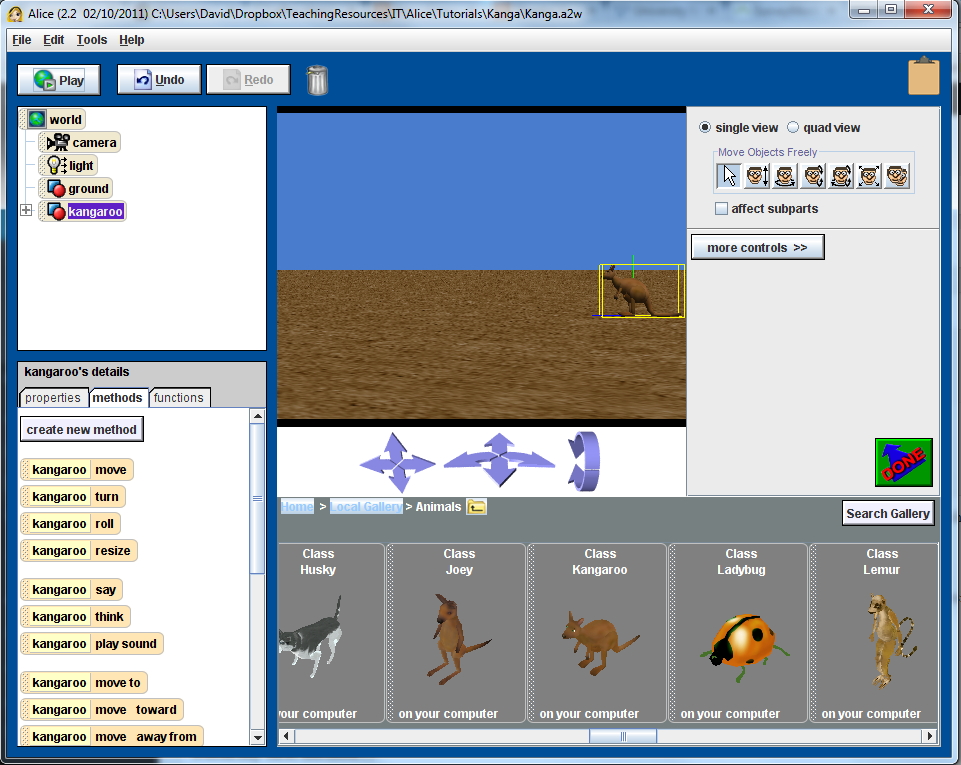
Firstly we create a new world and add a kangaroo to the world. Orient the Kangaroo so that it is facing towards the opposite side of the screen.
Setting up the world

Setting up the world

Moving the Kangaroo

To move the Kangaroo we want to make it look like it is hopping across the screen. To do this we need to make the Kangaroo move forward at the send time that it moves up then down.

Before writing any code we will come up with a simple design.


Do Together
   Move the Kangaroo forward
   Move the Kangaroo up and down

We then refine our design by splitting the last line into two instructions, one to move the kangaroo up and the second to move the kangaroo down.


Do Together
   Move the Kangaroo forward
   Do in order
      Move the Kangaroo up
      Move the Kangaroo down

This can now be easily coded in Alice by deciding how far you wish to move the Kangaroo in each of the move commands, noting that it should move the same distance up and down. When you run the resulting program you will most likely notice a slight problem. The Kangaroo will move up and forward at the same time, then move straight down. The issue is with the timing of the each of the move commands. The default time taken to complete a command in Alice is 1 second. To fix the problem we need to complete the move up and down commands in a total of 1 second. This means that we need to change the timing for each of the last two commands to 1/2 second each. This is represented by the following updated design.


Do Together
   Move the Kangaroo forward for 1 second
   Do in order
      Move the Kangaroo up for 0.5 seconds
      Move the Kangaroo down for 0.5 seconds

To code this change we need to select the duration option from the more option list at the end of the move commands and change the time to 0.5 secs for each of the last two commands.

Repeating behaviour

The kangaroo should now take a single hop, run your program to test that is working correctly.

One hop however is not very exciting, we wish to make the kangaroo hop multiple times. Rather than having to copy the code multiple times we will use a simple loop to repeat the behaviour.

Click on the Loop button at the bottom of the screen, drag it into the programming panel (below your existing code) and select 5 times. Then drag your existing code into the loop. Run the program – the kangaroo should now hop five times across the screen.

The Final Code

The final code for the Kangaroo hop program is shown below. Notice that I’ve also added some additional code so that a sound is played as the kangaroo hops. A short delay is also introduced using the wait command.

Methods

world.my first method ( )

No variables

  Loop 5 times times
  Do together
  kangaroo move forward 2 meters
  Do in order
  Wait .1 seconds
  kangaroo play sound world.wHOP (?:??)
  Do in order
  kangaroo move up 1 meter duration = 0.5 seconds
  kangaroo move down 1 meter duration = 0.5 seconds

Alice Tutorial: Hello World


The Hello World program has traditionally been the first programming exercise that students are introduced to when they learn a new language, so why should we be any different in Alice.

Check out http://c2.com/cgi/wiki?HelloWorld for further information and a brief history.

Creating a new world

The first step in making a program in Alice is to create a new world. This is the environment in which all of your characters and objects will interact. There are six world templates to choose from. I have selected the grass world.

Select_Template

Adding a character to your world

The next step is to add a character to your world. To do this click on the Add Objects button. Then browse through the Local Gallery until you find the People folder. Open the People folder and select a suitable character. For this example I have selected the DJ character.

Select_ObjectWriting your first program

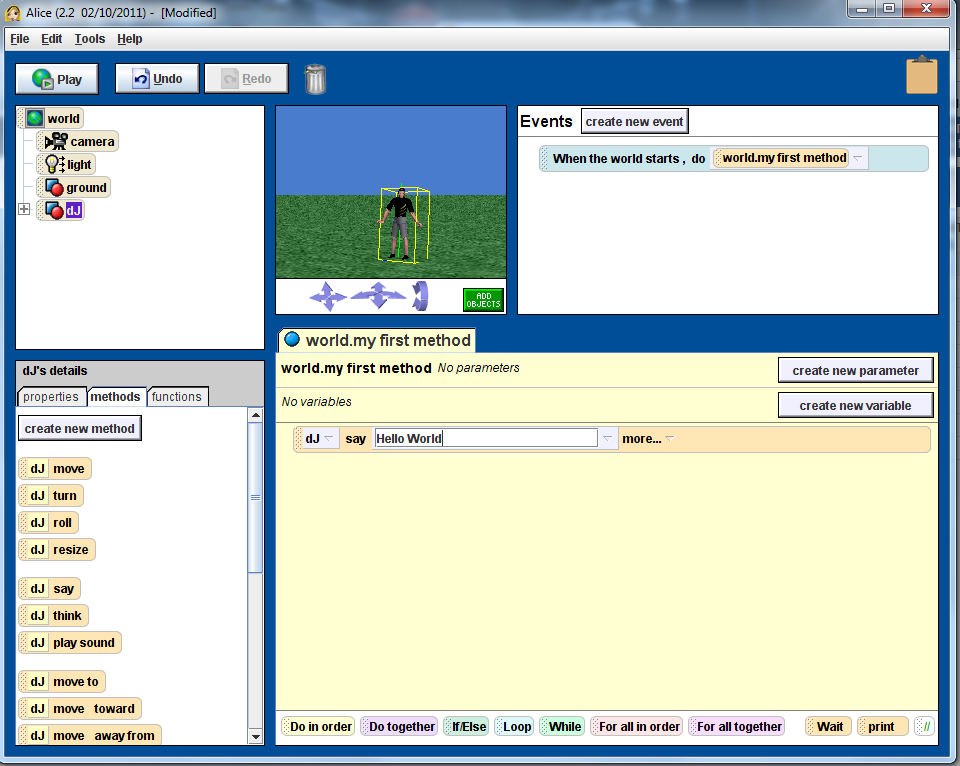
In this step we write our first bit of code. To do this click on the dJ object in the top left hand panel. Then make sure that the method tab under dJ’s details is selected. Click on the dJ say method and drag it across to the my first program panel. Click on the text next to say and change the text to “Hello World”.

ProgramRunning your program

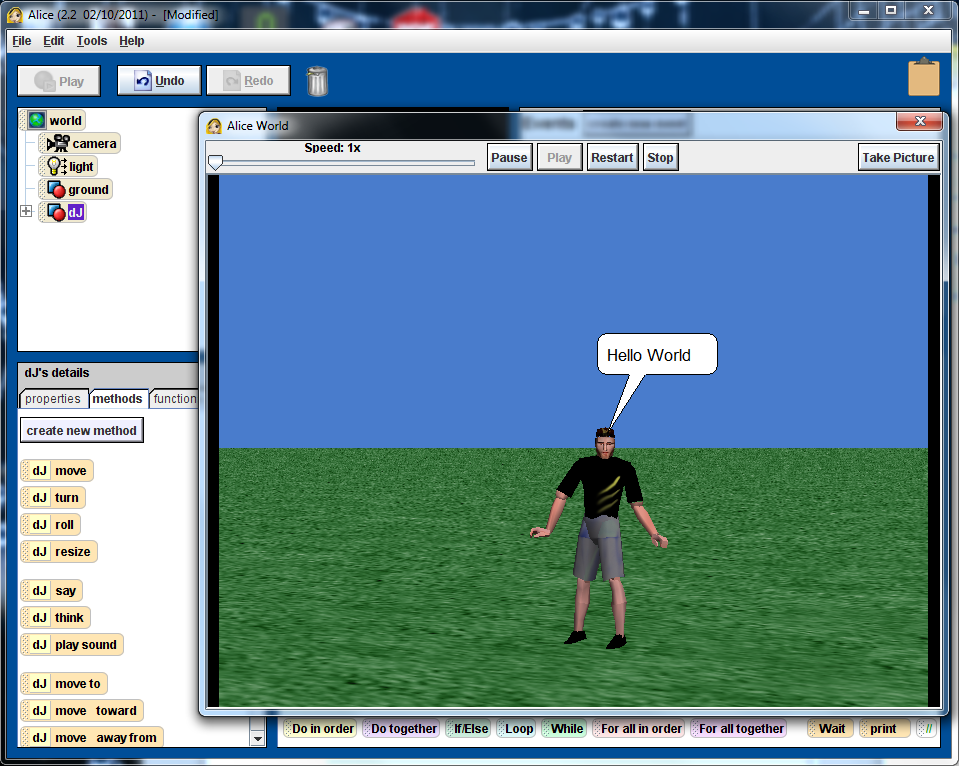
Now it is time to check that your program works. Click on the Play button. This will open a new window and run your program. The result should look like the window below. Note that the text will only show for one second.

Play

Code Listing

Events

When the world starts
Do:
world.my first method


Methods

world.my first method ( )

No variables

  dJ say Hello World duration = 10 seconds

Extensions

Ok you’ve created your first program. Now is probably a good time to explore a little further. Here’s some ideas:

  • Extend the time that the speech bubble is showing by setting the duration attribute.
  • Introduce a second character who can say something in response
  • Create a short play/story that involves interaction between the two characters.


Alice Tutorial: Indefinite Loops

The learning objectives for this tutorial are:

  • Students can design and implement programs using indefinite loops
  • Students can use the random number function in their programs
  • Students can design and use class level methods

In this activity you will design and develop a cat and mouse game. The cat chases the mouse at the same time the mouse moves in a random direction trying to evade the cat. When the cat finally catches the mouse it will enjoy a tasty meal. To assist in the development of the program we provide a number of suggested development steps.

Step 1: creating the world

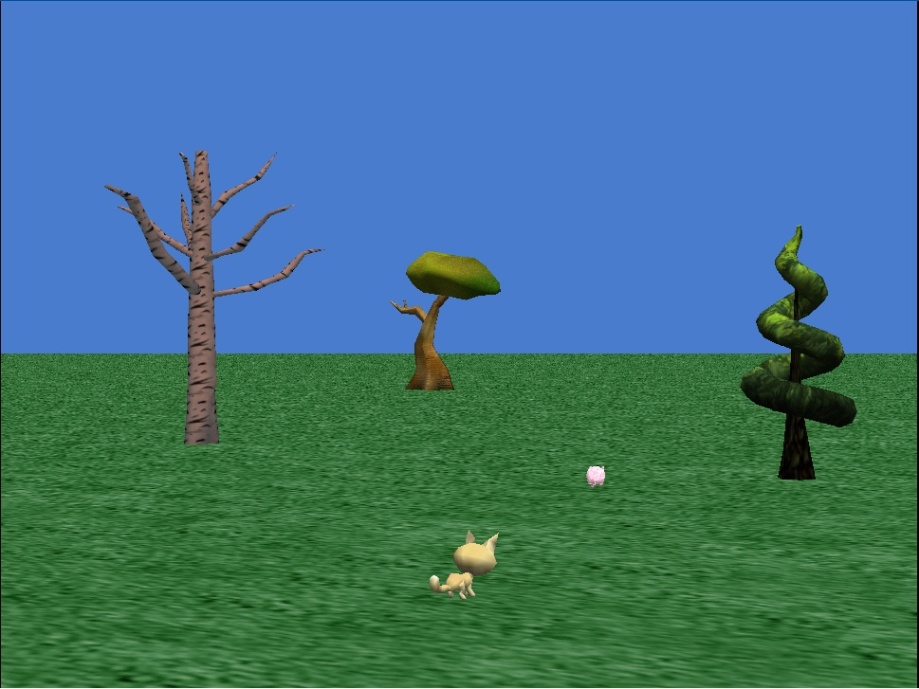
Create a new world that includes a Cat object (Animals) and a Mouse object (Animals). Ensure that the mouse is initially a reasonable distance away from the cat and that it is facing away from the cat. You may wish to add some additional scenery to make the chase a little more interesting.

Cat and mouse game

Cat and mouse game

Step 2: creating Chase method

Create a new class method for the Cat class called chase. In this method the cat should turn to face the mouse, then move forward 1 metre. You may wish to add some animation to the cat’s movement, but you should do this after you have completed the other steps.

Step 3: creating run away method

Create a new class method for the Cat class called runAway. In this method the mouse should turn left or right a random amount (up to a maximum of ¼ of a revolution in either direction). You will need to use the random number function to determine the amount to turn. The mouse should then move forward 1 metre.

Step 4: Introducing a loop

In my first methodcreate a while loop. In the body of the while loop you must call the methods chase and runAway. You will need to design a test for the while loop, such that the loop continues until the cat is within a certain distance of the mouse (use an appropriate function to determine the distance between the cat and mouse).

STEP 5: catching the mouse

Create a new class method for the Cat class called eatMouse. The method should perform an appropriate action once the cat catches the mouse. Call the eatMouse method in my first method after the while loop.